Hello, solar-man,
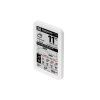
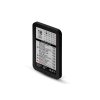
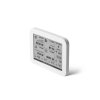
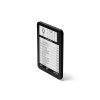
You've got your hands on my SOLAR STATION – an e-ink monitoring hub for your photovoltaics and home energy. It displays production, consumption, battery status, grid flow, spot electricity prices, weather forecast, heat pump data, EV status, and more. It can also control smart plugs and wallboxes based on configurable rules. Before you turn on your device for the first time, prepare your WiFi credentials and cloud monitoring login details for your inverter (or the IP address if using a local Modbus connection). So let's take a look at the first steps after you open the box and get your hands on your SOLAR STATION.
- SOLAR STATION
- First power on
- Setup
- Inverters
- Heat pumps
- Electricity distributor
- Wallbox
- Weather
- Spot Prices
- SOLAR PLUG switching rules
- Wallbox switching rules
- Switching off overflow at negative spot prices
- Charging/Discharging the Battery Based on Spot Prices
- Intelligence
- Color scheme
- Night mode
- LIVE – Real-time Data
- TESLA
- Tile description
- Firmware updates
- Factory reset
- Charging
- Error resolution - I have a WiFi error at the bottom of the status bar
- Error resolution - I have a Cloud error at the bottom of the status bar
- Error resolution – I have a PLUG error at the bottom of the status bar
- SOLAR PLUG
First power on
I designed SOLAR STATION so you only need to follow the instructions you see on display. I've also included instructions that correspond with the description on display. You can change the language in settings.
After unpacking the device, it probably shows that the device is asleep. The RESET button is on the back of the device.
After pressing RESET, the device wakes up for 5 minutes and starts broadcasting WiFi called SolarStation (together with a long number). Connect to this WiFi network with your phone or computer. For a shortcut, you can scan the displayed QR code with your mobile phone to guide you through the WiFi connection.
The setup form should pop up automatically, just like when you are connecting to a public WiFi (for example in a shopping mall). If it doesn't pop up, open http://192.168.4.1 in your browser, and it will display the WiFi setup.
You'll need to select your home WiFi and enter its password.
Next, you need to fill in the details to connect to the inverter. You can find these details by your inverter type in the Inverters section.
Now you have completed the minimum that is required for the basic SOLAR STATION function. Below on the form is a button to save the details. You can easily access this form again here.
Setup
If you need to edit anything in SOLAR STATION or you forgot something you can go to the setup form as follows:
- Briefly press the
RESETbutton. - When SOLAR STATION boots up and loads data, a popup will appear with two options:
- Via home WiFi – enter the displayed address (e.g.
http://192.168.x.x) in your browser on a device connected to the same WiFi. - Via SolarStation WiFi – connect your phone or computer to the
SolarStation-...WiFi network and open http://192.168.4.1.
- Via home WiFi – enter the displayed address (e.g.
Inverters
SOLAR STATION supports many inverters or their monitoring portals. The following sections will show you what data you need to connect each inverter and where to find it.If you have multiple installations in your account (e.g. you are a PV installer) you have the option to view other installations. In the setup form, there is a field to enter the serial number of the installation - as you see it in your account. Alternatively, for most portals, you can set up a supervisor account, share a specific installation to that account, and then enter that installation into SOLAR STATION.
| Name | What I Need | Portal | Note |
|---|---|---|---|
| SOLAX | WiFi dongle number and API token | solaxcloud.com | You can find the values in the Device / Converter / Registration Number section (the second column). And then in the Service / API section, you'll find the required API token in the tokenID field. The token is that long number starting with the year the token was issued. |
| SOLAX (MODBUS) | WiFi or WiFi/LAN dongle | local network | SOLAR STATION and inverter must be on the same network. Only a WiFi dongle or combined dongle is supported (pure LAN dongle is not). |
| SOLAX - Unofficial WEB API | login name and password | solaxcloud.com | Alternatively, for the SOLAX inverter, you can use the unofficial API, which offers far more data than the official one. |
| GOODWE | login name and password | semsportal.com | |
| GOODWE (MODBUS) | WiFi or WiFi/LAN dongle, IP address (optional – auto-detection via UDP broadcast available) | local network | Direct local connection – SOLAR STATION communicates directly with the inverter via Modbus protocol. Supported: GoodWe ET series hybrid inverters (all power variants). Other series (EM, ES) are not yet supported. First, in the SolarGo app (GoodWe's original app), make sure Third-party access (Modbus) is enabled – without it, communication will not work. You can also find the dongle's IP address in the SolarGo app. If you don't enter the IP address, the station will try to find the inverter automatically via UDP broadcast discovery. Communication uses UDP (port 8899) or TCP (port 502). The station automatically tries both and remembers which works. |
| GROWATT | login name and password | server.growatt.com | |
| VICTRON | login name and password, or Access Token | vrm.victronenergy.com | Alternatively, you can use an Access Token instead of username and password. Create it at vrm.victronenergy.com/profile/integrations. The token is permanent and does not expire. |
| ALPHA ESS (STORION) | login name and password | cloud.alphaess.com | |
| SOFAR Solar / DEYE (SolarmanPV) | login name and password for Solarman Smart | home.solarmanpv.com | If there are multiple inverters in a given installation, SOLAR STATION will sum them up. Common mistake: There are two different apps – Solarman Business (for installers) and Solarman Smart (for end users). SOLAR STATION only works with a Solarman Smart account. Credentials from a Business account will not work. If you only have a Business account from your installer, ask them to create an end-user Smart account for you. The installer does this in the Solarman Business app: open plant details → "Authorize End User" → enter your email. Then log in to Solarman Smart and use those credentials in SOLAR STATION. |
| SOFAR Solar (MODBUS) | Dongle SN (numeric from AP name, e.g. AP_123456 → 123456). IP address optional. | local network | Direct local connection via Solarman LSW-3 WiFi dongle (V5 protocol, port 8899). Supported: SOFAR Solar HYD hybrid inverters (all power variants). Enter the dongle SN – found on the dongle label or in the WiFi AP name. IP address is optional – if not entered, auto-discovery via UDP broadcast will be used. If auto-discovery fails (e.g. due to VLANs), enter the IP manually from your router settings. |
| DEYE | login name and password | deyecloud.com | |
| DEYE (MODBUS) | Dongle SN (numeric from AP name, max 10 digits). IP address optional. | local network | Direct local connection via Solarman WiFi dongle (V5 protocol, port 8899). Supported: single-phase hybrid, three-phase hybrid (e.g. SUN-xK-SG04/05LP3), string inverters, and micro-inverters. The station auto-detects the inverter type. Enter the dongle SN – found on the dongle label or in the WiFi AP name. IP address is optional – if not entered, auto-discovery via UDP broadcast will be used. If auto-discovery fails (e.g. due to VLANs), enter the IP manually from your router settings. |
| CEZ BATTERY BOX | login name and password | portal.oigpower.cz | |
| SUNWAYS | login name and password | www.sunways-portal.com | |
| WATTSONIC | login name and password | wattsonic.cloud | |
| SOLINTEG | login name and password | solinteg-cloud.com | |
| FOXESS | login name and password | foxesscloud.com | |
| SERMATEC | login name and password | sermatec-cloud.com | |
| SOLAR EDGE | generated API key and Site ID | monitoring.solaredge.com | API key: section Administrator / Site Access / API Access → API Key.Site ID: on installation detail page, right panel SITE INFO → field ID. |
| HUAWEI | login name and password | eu5.fusionsolar.huawei.com | |
| RCT POWER | login name and password | rct-portal.com | |
| HES(AERS) | login name and password | aes.aers.cz | |
| FRONIUS | login name and password | solarweb.com | |
| ENERGY CLOUD | login name and password | Google Play or App Store | Mobile app Energy Cloud |
| BENEKOV | login name and password | sermatec.cz | Benkov Monitoring |
| SUNGROW | login name and password | isolarcloud.com | |
| GETI (PV Inteless) | login name and password | pv.inteless.com | |
| Studer Innotec | login name and password | portal.studer-innotec.com | |
| Solar Manager | login name and password | solarmanager.ch | |
| SOLPLANET | login name and password | cloud.solplanet.net | |
| ENPHASE | login username and password | enlighten.enphaseenergy.com | |
| RENAC POWER (Schlieger Asymo Hybrid) | login username and password | sec.eu.renacpower.com | |
| SOLIS | login username and password | soliscloud.com | |
| EASUN (DessMonitor) | login name and password | dessmonitor.com | |
| KOSTAL | login email and password | kostal-solar-portal.com | Use the same login credentials as for the Kostal Solar Portal web application. |
| FENECON (FEMS) | login email and password | portal.fenecon.de | OpenEMS-based energy management system. Use the same credentials as for the FENECON portal. |
Heat pumps
SOLAR STATION also supports selected types of heat pumps. Similar to the inverters you need to enter your heat pump monitoring login details. Below you can find what data you need to connect the heat pump and where to find this information.
| Name | What I Need | Portal | Note |
|---|---|---|---|
| MasterTherm (Neobox) | login name and password | NEOBOX | Only the legacy NEOBOX system is supported. |
| MELCloud (Zubadan) | login email and password | Melcloud | |
| Viessmann (ViCare) | login email, password and API Client ID | Viessman Portal | To get your API Client ID, you need to log in to Viessman Portal using your ViCare username and password. Then in Your clients section click on Add button, name your client, for example "Solar Station", and click Create
Client. This will generate and display your Client ID you can enter during the setup. You can copy the Client ID using Copy to clipboard button.
Note: |
| NIBE (myUplink) | Client ID and secret | Developer myUplink | Log in to Developer myUplink with your credentials and create a new application. After creating the application (any, e.g., Solar Station), you will obtain the required Client ID and secret. Then, enter this information into Solar Station. The first heat pump in the given account will be displayed. |
Electricity Distributor
We currently only support EG.D. Other electricity providers are not supported because they do not have an API available. Once this situation changes, we will support other providers as well.
| Name | What I Need | Portal | Note |
|---|---|---|---|
| EG.D | client ID, key and EAN code | portal.distribuce24.cz | In the Account Management section, you can generate the client ID, key, and EAN code by clicking on OpenAPI. Don't forget to also select the billing period you want to display, otherwise, the tiles will be displayed but it will display zero. |
Wallbox
SOLAR STATION currently supports wallboxes paired directly with PV as well as external wallboxes from third party manufacturers - these require additional setup.
If Auto Detect is listed in the following table, then there is no need to set anything up, SOLAR STATION will wallbox detects and displays the charging information on the wallbox tile.
| Name | Automatic Detection | Control support | Note |
|---|---|---|---|
| SOLAX | ANO | UNO | Wallbox is displayed automatically when using SOLAX - Unofficial WEB API if it is paired in the installation |
| EcoVolter PRO | NO | YES | To configure the wallbox, you need to generate an API key at ixfield.com, using the same login credentials as for the original iXManager. In your user profile you can then create the API key. You will also need the charger’s serial number in the format: XXX-XXX-XXX. |
| EcoVolter PRO (2nd generation) | NO | YES | To configure the wallbox, both the wallbox and the station must be on the same WiFi network. In the settings, enter the wallbox serial number in both fields, in the format REVCXXXXXXXXXXXXXX. |
| GOODWE | YES | NO | Wallbox is displayed automatically when charging. |
| GROWATT | YES | NO | Wallbox is displayed automatically when charging. |
| ALPHA ESS | YES | NO | Wallbox is displayed automatically when charging. |
| VICTRON | YES | NO | Wallbox is displayed automatically when charging. |
| HUAWEI | YES | NO | Wallbox is displayed automatically when charging. |
| BENEKOV | YES | NO | Wallbox is displayed automatically when charging. |
Weather
The SOLAR STATION can display the current weather forecast. Just fill in the address field in the form. Enter it without diacritics, and if the location is not specific, include the country. For example: Zlin, CZ
Weather data is loaded twice a day. However, it always retrieves an hourly forecast. If you want weather updates every hour – with increasing precision – create an account at openweathermap.org. You’ll receive your personal API key by email, which you can enter into the appropriate form field.
On the tile for today, the temperature and an icon for the current hour are displayed. For the following days, the minimum and maximum daily temperatures are shown, with an icon representing noon.
The weather provider is openweathermap.org, where you can check the forecast for your location.
The sunlight forecast is shown below the weather icon. It considers the sun’s angle and cloud cover. 100% corresponds to a clear day during the solstice. This is a very rough indicator, mainly useful for tracking trends. The model is simple but doesn’t require any additional setup for panel tilt or position and is available without entering extra data. Again, today’s value is for the current hour, and the following days are based on noon.
Spot Prices
SOLAR STATION displays current spot electricity prices from 27 European countries and zones via Energy Charts (Fraunhofer ISE). Prices are automatically converted to your local currency. You can select the country/zone in the setup form.
Additionally, ČEZ Dynamic Tariff is available as an offline mode for Czech users.
By default, the prices shown on the tile are excluding VAT.
ČEZ Dynamic Tariff
ČEZ Dynamic Tariff is a special offline mode that works according to predefined time zones with fixed discounts and surcharges. This tariff has two periods:
- Winter period (October to March)
- Summer period (April to September)
In each period, there are different prices for working days and weekends/holidays. Discounts range from -50% (cheapest, typically 3:00-5:00) to +25% (most expensive, typically evening peak). The system automatically recognizes Czech public holidays.
Advantages of ČEZ Dynamic Tariff:
- Works offline - no internet connection needed
- Fixed prices known in advance
- Protection from extreme fluctuations (max. +25%, min. -50%)
- Automatic recognition of holidays and weekends
VAT and fees
You can set the VAT rate and fees in the spot price advanced settings in the setup form. There are separate settings for hours with high and low tariff prices, thus allowing you to target the settings for the hours you are interested in. You can mark when high tariff hours are and these hours will use high tariff multiplier and offset for calculations in those hours, the rest will use low tariff.
Everything is calculated using offset and multiplier keywords. Where you can imagine offset as a fixed fee and multiplier as a percentage fee. The final price is calculated as follows: final_price = price * multiplier + offset.
NOTE if you set electricity price provider as EPEX SPOT AT (EUR/MWh) - Austria the offset must be entered in the same units, e.g. EUR/MWh.
Calculation example where VAT (multiplier) = 1.21 (21%), FEES (offset) = 1 (1€/MWh), and ORIGINAL PRICE = 5€ is: FINAL PRICE = 5 * 1.21 + 1 = 7.26€
SOLAR PLUG switching rules
SOLAR STATION can also switch the socket - SOLAR PLUG, which is paired according to the instructions below (SOLAR PLUG). The rule you set is evaluated once every 5 minutes and if the rule is broken, the plug is disabled. The hysteresis is therefore temporal.
Here is a list of rules you can set for switching of the SOLAR PLUG.
- Disabled - only consumption is displayed. You switch the socket on using the button.
- The battery is charged to the selected percentage.
- Energy surplus exceeds the specified value (W). You define the surplus level for switching on and another for switching off. Keep in mind that turning on a load will reduce the surplus, potentially triggering shutdown. Ideally, the difference should match the appliance's power usage.
- PV generation exceeds the specified (W) limit.
- The spot price of electricity is among the N cheapest hours of the day. e.g. if you enter 3 - the socket will be switched on 3 hours a day (the cheapest hours).
- The spot price of electricity is below the specified level. The price is given in target units, as you see them on the display.
- Temperature is below or above the specified value. The temperature is measured by the sensor on Solar Plug AddOn.
- Intelligence – The rule is controlled by the Intelligence function. This rule cannot be combined with other rules.
You can choose multiple rules and also you can choose a combination rule ALL or ANY. So you can set rules like: Turn on when battery is over 80% and (ALL) hour is between 9 and 15.
Wallbox switching rules
This feature is supported with SOLAX wallboxes (if using SOLAX - Unofficial WEB API, the wallbox must be set to ECO mode) and with EcoVolter PRO wallboxes.
The same rules as for SOLAR PLUG apply to the wallbox as well. The rule you set is evaluated once every 5 minutes and if the rule is broken, charging is suspended.
Here are some rules you can set for switching of the wallbox.
- Disabled - only the consumption is displayed. You turn on the wallbox manually.
- The battery is charged to the selected percentage.
- The overflow is more than the specified (W) value. The plug is on until ther is and feedin power.
- PV generation exceeds the specified (W) limit.
- The spot price of electricity is among the N cheapest hours of the day. e.g. if you enter 3 - the socket will be on 3 hours a day (the cheapest hours).
- The spot price of electricity is below the specified level. The price is given in target units, as you see them on the display.
- Intelligence – The rule is controlled by the Intelligence function.
Switching off overflows at negative spot prices
This feature is supported only if you are using a connection via:
- SOLAX - Unofficial WEB API
- SOLAX (MODBUS)
- GOODWE (MODBUS)
- SOFAR (MODBUS) - uses the AntiReflux register to cap export to the configured limit (typically 0 W)
- DEYE (MODBUS) - uses Solar Sell register to enable/disable grid export
- ČEZ Battery Box
You can also use the automatic setting to turn off overflows depending on the spot price. Into the field reserved value enter the value of the reserved power from the distributor (e.g. 4800 if you have a 4.8kW contract). Next, you need to enter the marginal price. In case you don't want SOLAR STATION to shut down overflows at a negative price, leave the Reserved
Performance field blank. Do not use this feature unless you have negotiated the overflows with your distributor!
Charging/Discharging the Battery According to Spot Prices
This feature is supported with SOLAX inverters when using SOLAX - Unofficial WEB API or SOLAX (MODBUS). It is suitable if you purchase electricity at spot prices.
On the settings form, press to display Advanced Settings.
You can specify the number of hours the battery should be charged from the grid. If you enter 2, then Solar Station will select the 2 cheapest hours of the day to charge the battery.
You can specify the number of hours the battery should discharge. If you enter 12, then Solar Station will select the 12 most expensive hours of the day to cover household consumption from the battery. This is beneficial for covering price peaks in winter.
You can specify the number of hours when feed-in to the grid (Feed-in priority) should be preferred over battery charging (Self use). For example, if you enter 20h, this means Solar Station will select the 20 most expensive hours to prefer feed-in to the grid and only 4h for battery charging. Luckily, in summer, the cheapest spot prices are usually around noon.
Intelligence
Intelligence is an advanced feature that automatically controls your inverter mode based on current spot electricity prices. Every 15 minutes it evaluates the situation and decides on the optimal mode to maximize the economic benefit of your photovoltaic system.
⚠️ Note: The Intelligence feature is in beta. We are actively developing and testing it.
What can Intelligence do?
- Grid charging – When electricity is cheap (typically at night or during negative spot prices), the system automatically charges the battery from the grid. You can use this energy during the day when grid purchase would cost more.
- Grid selling – When the electricity price is high and you have excess energy in the battery, the system can sell energy to the grid at a favorable price (forced discharge).
- Delayed battery charging – If the system expects you'll produce enough solar energy during the day, it won't charge the battery from the grid unnecessarily – it waits for the sun.
- Battery hold (HOLD) – When the current grid electricity price is lower than the cost of using the battery, the system temporarily "holds" the battery and covers consumption from the grid. It saves the battery for when grid electricity is more expensive.
- Arbitrage – If the price difference between cheap and expensive electricity is large enough, the system buys cheap and sells expensive, generating profit.
All decisions take into account not only current prices, but also predictions of your consumption and production for the following hours, battery state, and costs of battery wear.
Supported inverters
Intelligence is currently supported for these inverters:
- SOLAX – hybrid inverters generation 4 and newer (X1-Hybrid, X3-Hybrid) with WiFi dongle in SOLAX - MODBUS mode
- GoodWe – ET series (1st generation) - all power variants in GOODWE - MODBUS mode
- SOFAR Solar HYD – all power variants in SOFAR Solar (MODBUS) mode
If you have a different inverter and are interested in support, contact us.
How does it work?
The system works in three steps:
1. Data collection
The device continuously collects data about your consumption and production. It stores this data and uses it for predictions.
2. Prediction
Based on historical data, the system predicts:
- Production – how much energy your panels will produce in the following hours (based on month, time of day, and current weather). The predictor stores production history in 15-minute intervals for each month of the year and uses exponential moving average (EMA) with coefficient α=0.2.
- Consumption – how much energy you'll consume (based on day of week and time of day). The predictor remembers the last 2 weeks – the prediction for Saturday is based on the previous two Saturdays.
Both predictors continuously compare actual values with predictions and adjust the estimate for the rest of the day (adaptive correction). At midnight, the correction resets.
3. Simulation and decision-making
Every 15 minutes, the system runs a simulation that "plays through" all future quarter-hours until the end of the next day. For each quarter-hour, it calculates the optimal inverter mode considering:
- Current and future spot electricity prices
- Predicted production and consumption
- Current battery state
- Battery usage costs (wear)
- Your settings (minimum/maximum battery charge)
Based on the simulation, the system chooses the optimal mode for the current quarter-hour and sends the command to the inverter.
What happens in the inverter?
Intelligence controls the energy flow in the inverter using temporary commands. The system uses so-called Remote Power Control – remote power management with automatic timeout.
Every 5 minutes, the system sends a command to the inverter with the required mode and a 20-minute timeout. If SOLAR STATION doesn't respond for any reason (WiFi outage, device failure), the inverter automatically returns to normal Self-Use mode after the timeout expires.
Intelligence switches between these modes:
- Self-Use – standard mode, inverter works autonomously
- Grid charging – inverter actively charges the battery from the grid
- Grid discharge – inverter actively sells energy from the battery to the grid
- Hold – inverter holds the battery (no charging or discharging), consumption comes from the grid
The system doesn't change any permanent inverter parameters – it doesn't change power limits, protection settings, battery configuration, or anything else. It only sends temporary commands for energy flow control.
How to enable Intelligence?
Enable Intelligence in settings. In the Intelligence section, check the Enabled checkbox. For proper operation, you need to enter several parameters.
Parameter settings
The accuracy of these values directly affects the quality of system decisions.
Battery usage cost (Battery Cost)
This is the key parameter. It represents the cost of one charge/discharge cycle of 1 kWh of energy in the battery.
How to calculate it: Divide the battery purchase price by its total lifetime in kWh.
Example: Battery for €4,000 with 10 kWh capacity and 6000 cycle lifetime = 4,000 / (10 × 6000) = €0.067/kWh
The recommended value is typically between €0.06–0.10/kWh depending on your battery type and price.
Electricity purchase price
Here you set how much you pay for electricity from the grid. You have two options:
- Spot price – you buy electricity at spot prices (changing every hour).
- Distribution fee – fixed surcharge per kWh including distribution fees, renewable energy fees, etc. Typically €0.08–0.15/kWh depending on your tariff.
- Advanced: Spot price multiplier – percentage of spot price. Typically 120% (spot + 20% VAT).
- Fixed price – you have a fixed price per kWh regardless of spot price.
Example for spot tariff: At spot price €0.08/kWh, multiplier 120% and distribution fee €0.10 the actual buy price = 0.08 × 1.20 + 0.10 = €0.196/kWh
Electricity sell price
Here you set how much you receive for selling electricity to the grid. You have two options:
- Spot price – you sell at spot prices.
- Aggregator fee – fixed fee per kWh deducted by your aggregator. Typically €0–0.02/kWh.
- Advanced: Spot price multiplier – percentage of spot price you receive. Typically 90–100%.
- Fixed price – you have a guaranteed feed-in price per kWh.
Tariff exceptions
If your distribution fees vary by time of day (e.g. high tariff HT and low tariff LT), you can add tariff exceptions. Exceptions are set separately for purchase and sell prices.
Each exception defines:
- Time range – from–to in hours (e.g. 22:00–06:00 for night tariff)
- Validity – every day, workdays only, weekend, Saturday, or Sunday
- K and Q – coefficient and fixed surcharge valid in the given period (for spot tariff), or fixed price (for fixed tariff)
Example: Distribution fee in high tariff (HT) is €0.15/kWh and in low tariff (LT, 22:00–06:00) is €0.05/kWh. Set the default distribution fee to €0.15 and add a purchase tariff exception for 22:00–06:00 with value €0.05.
You can define up to 8 exceptions in total (purchase and sell combined).
Battery limits
- Min SOC – minimum battery charge state in %. Battery won't be discharged below this limit. Typically 10–20%.
- Max SOC – maximum charge state when charging from grid in %. Typically 90–95% (some batteries don't recommend keeping at 100% long-term).
Battery parameters
These values are usually loaded automatically from the inverter:
- Battery capacity – total capacity in kWh
- Max. charging power – maximum charging power in kW
- Max. discharging power – maximum discharging power in kW
What do you see on the display?
When Intelligence is active, an information tile about the control is displayed. The tile contains:
- Current mode – shows what mode the inverter is currently operating in (Charging, Discharging, Normal, Hold).
- Planned mode – what mode will follow and when it will change.
Color scheme
You can also set a color scheme for your SOLAR STATION. You can choose between dark, light, and auto mode.
Dark looks great in combination with the black option. If you want you can also set it to change the color automatically according to the sunrise and sunset.
Night mode
The night mode is used to save power and thus make the SOLAR STATION last longer on a single charge.
The night mode will automatically turn on between 22:00 and 6:00. Depending on the settings the data on screen will be updated at a lower frequency. If you want, you can set the night mode according to the following values:
Hourly Interval- The values will be updated every hour.Standard interval- Values will be updated according to the standard interval, i.e. every 5 minutes.Off- Values will not be updated during the night mode. SOLAR STATION will display its logo. The first redraw will take place after the end of the night mode at 6 am.
Don't forget that if night mode is active the control functions may be unavailable - such as the control of SOLAR PLUG according to spot prices.
LIVE – Real-time Data
LIVE mode is a special data-loading and display mode with a 30-second interval. It activates automatically when the following conditions are met:
- SOLAR STATION LaskaKit (5.83" / 7.5" / 10.2")
- The sun is shining – power generation is active
- The station battery is above 90% – charger connected
- You are using SOLAX (Modbus), GoodWe (Modbus), Victron, or ČEZ Battery Box connections
When this mode is active, the display shows LIVE instead of the clock.
Remember, when LIVE mode is active, all data updates from every 5 minutes to every 30 seconds. This also means SOLAR PLUG sockets are controlled more frequently.
TESLA
SOLAR STATION can be connected to your TESLA car. To connect, click on the setting form and then click on the TESLA button. The connection can be made only if the SOLAR STATION is already connected to your WiFi network.
You will then be redirected to the TESLA website where you will log in and grant SOLAR STATION access to information about your car. Once successfully connected, the display will show you the current battery status, charging, and other information about your car.
The first vehicle where you are the owner is displayed. Displaying multiple vehicles or selecting them is not currently supported.
The login key remains stored in SOLAR STATION. If you want to cancel the connection you can go to the TESLA website and invalidate the key in your profile.
Description of individual tiles
The layout may change from time to time and is dynamic. Not all tiles are always displayed (e.g., battery if not present in the system). Therefore, a unified explanatory image cannot be created – I will try to describe it verbally. However, the main (large) data is always displayed.
The display is divided into four main tiles, a bottom row with weather, and a right column with additional data.
Main Tiles
- Photovoltaic Plant Production:
- The large number shows current production, the smaller one shows today's total.
- A ratio line may be present, showing the production share of each field.
- A pie chart around the icon shows the use of generated energy:
- Black – sale to the grid
- Gray – battery charging
- Light – household consumption
- The bottom part shows hourly production. The graph overlays yesterday's values, so in the morning yesterday's data is visible for comparison – full data appears after 24 hours.
- Battery:
- Displays current
charging/discharging power. - A pie chart around the icon shows the ratio of charged and discharged energy.
- Inside the tile: + charged energy, – discharged energy (today).
- The bottom part shows battery charge progress. The graph overlays yesterday’s data – fully visible after 24 hours.
- Battery state is shown in % next to the graph.
- Displays current
- Household Consumption:
- Shows
current consumption– sum of production, battery, and grid purchase. - Smaller number shows today’s total consumption.
- Ratio line shows phase load, black color highlights phase above 50%.
- The pie chart shows:
- Black – grid purchase
- Gray – battery usage
- Light – photovoltaic
- The bottom shows hourly consumption, overlaid with yesterday’s data – full visibility after 24 hours.
- Shows
- Purchase and Sale:
- Shows
current energy purchase and sale. - Power plant symbol = purchase, heart symbol = sale and independence.
- The pie chart shows the proportion of purchase and sale.
- Inside: + today’s sale, – today’s purchase.
- The bottom shows hourly values. Yesterday’s data is shown for comparison – fully visible after 24 hours.
- Shows
Additional Data - Right Column
- Calendar - displays the current
date and day of the week. The calendar fills empty space and is dynamically resized based on other data. If there are many additional elements, it may be hidden.
New: The calendar also displaysholidays and name daysaccording to the selected language. Holidays appear in a black badge at the bottom of the calendar tile. The system supports complete holiday and name day calendars for all available languages (Czech, Slovak, Polish, German, French, Spanish, Italian, English). Long names are intelligently shortened for better display. - SOLAR PLUG tile displays information about the paired SOLAR PLUG. The icon changes based on the activity of the configured rule and shows the
current powerflowing through the outlet, with the smaller number showing thetotal energythat has flowed through the outlet.
Firmware update
SOLAR STATION is equipped with semi-automatic firmware updates. The firmware is checked and updated automatically when the RESET button is pressed. Therefore, this manual is only intended to be used if this semi-automatic update fails.
Semi-automatic update
If a new firmware version is available, the device will automatically update. The update takes a few minutes, after that the device reboots.
If you don't want to receive new features and updates, you can disable automatic updates in the station settings under the Firmware tab.
Manual Update
You only need to do a manual update if something goes wrong. In all other cases, the device will update on its own.
Manual update procedure
Ideally, do this on a computer (it is also possible on a mobile phone but it is more complicated for the user)
- First, you need to find out exactly what SOLAR STATION you have and download the correct file. Pay good attention to this!
- I have the 5.83" model: Download firmware
- I have the 7.5" model: Download firmware
- I have the 10.2" model: Download firmware
- Download the file and save it on your computer.
- Take the SOLAR STATION and do a factory reset on it.
- Connect to the
SolarStation-XXXXWiFi network, just like you did after you purchased it. - In your browser, open http://192.168.4.1 and you will see the setup form. Don't fill it out now.
- At the bottom of the form is the update firmware option. First, press
Select Fileand select the file you downloaded in the previous step, and then pressUpdate firmware. This will update the firmware from the file. Version of the firmware should change. This completes the update process. That wasn't so bad, was it? - After the firmware update, the SOLAR STATION will start transmitting WiFi with the name
SolarStation-XXXXXX. Now, reconnect to this WiFi and fill out the form this time similar to the first time you turned it on in the Settings.
Factory reset
If anything goes wrong, the easiest thing to do is to do a factory reset and start over.
Important: The battery must be charged to at least 80% to perform a factory reset. If the battery is low, the factory reset option will not be displayed.
Use the RESET button to wake up or reboot the device. If the battery is sufficiently charged, a screen will appear with the message "Press RESET again for factory reset". Press the RESET button within 5 seconds. The device memory is completely erased and you will see a screen with a QR code.
Now you can follow the instructions to first power on.
Charging
Charging is done via a USB-C cable. Charging is indicated by a glowing red LED on the back of your SOLAR STATION. Do not rely on the percentages shown on the display during charging!
- Charging is indicated by a
glowing red LEDon the back. When fully charged the LEDturns off.
The charging takes several hours. We let the device charge overnight before selling it.
WARNING: in some cases, the cable works in one direction only. After plugging the cable in check carefully and make sure it is charging, indicated by the LED on the back of the device. If the device is not charging you need to rotate the cable, then the charging should begin.
How long does the device last when charged?
We install a minimum of 2500mAh LiPo into the device, based on availability. Occasionally you may get a different battery but always a larger one. The battery life is uncertain - of course, we have measured the consumption and the theoretical endurance is currently 2 months but only in ideal conditions. The ideal conditions are such that the device updates itself regularly within 5s. This data is displayed at the bottom of the status bar. This can be achieved primarily by a good WiFi signal and fast internet. The device does not like network mesh setups because it takes a long time to connect to the network as the various APs (access points) keep switching SOLAR STATION between them. The brand of inverter also affects this quite a bit as some manufacturers provide data instantly and others (GoodWe) only after 2-3 seconds. As you can see, how long the device stays charged depends on multiple factors and it's impossible to say exactly. You can count on a month. If the device discharges faster than a month you need to address the issue. The most common issue is with the WiFi and if you have the option to try it elsewhere (e.g. at work) then try it.
Solve error - I have a WiFi error at the bottom of the status bar
This error is tricky and can be problematic. It means that SOLAR STATION cannot connect to your home WiFi.
If the error appears right after the first set-up then it in most cases means you made a typo in the WiFi password.
If the error appears randomly, then the SOLAR STATION is struggling to connect to WiFi. This is also causing it to drain faster. Check the following:
- Check that there is a sufficiently strong signal. SOLAR STATION has a relatively weak antenna so it needs to be within the WiFi router's range.
- Avoid using a cheap repeater.
Solve error - I have a Cloud error at the bottom of the status bar
The Cloud error indicates a series of errors related to the inverter manufacturer's cloud communication. Try the following:
- Verify that you have entered the correct data for your inverter. Make sure you haven't changed the password.
- For SOLAX you need to enter the second piece of information -
Registration Numberand not the first one. This is a really common mistake which is why I'm listing it here. - Try logging into the manufacturer's cloud and check that you can see your inverter there. It happened before that the cloud was temporarily unavailable or that the inverter had been unpaired from your account.
- If none of this helps, email me. Also, send the
serial numberof the SOLAR STATION that is displayed on the home screen when you press theRESETbutton. Just send a picture.
Error Resolution – I Have a Plug Error at the Bottom of the Status Bar
The Plug Error indicates a series of communication issues with SOLAR PLUG. Try the following:
- Check that the SOLAR PLUG is plugged into the socket and that the green LED is on.
- Ensure that the SOLAR PLUG is close enough to the SOLAR STATION. If it is too far away, the connection may be lost.
- Check the WiFi router settings to make sure communication between devices on the local network is not blocked.
- Try re-pairing the plug as described in the instructions below.
This issue must be resolved; otherwise, the SOLAR STATION will quickly discharge.
SOLAR PLUG
Before you even unpack the plug from the box, check that the SOLAR STATION has up-to-date firmware. I also recommend checking the SOLAR STATION setup form and setting the rule for switching the socket on/off.
The rules are part of the settings in SOLAR STATION so you can find them here SOLAR STATION/SOLAR PLUG switching rules.
Supported plugs
| Name in SOLAR STATION | Shelly model | WiFi prefix | Max. power |
|---|---|---|---|
| SOLAR PLUG 2500W | Shelly Plug S | shellyplug-s- |
2500W |
| SOLAR PLUG 2500W | Shelly Plus Plug S | ShellyPlusPlugS- |
2500W |
| SOLAR PLUG 2500W | Shelly Plus Plug S Gen3 | ShellyPlugSG3- |
2500W |
| SOLAR PLUG M 3000W | Shelly Plug M Gen3 | ShellyPlugMG3- |
3000W |
| SOLAR PLUG 3600W | Shelly Plug | shellyplug- |
3600W |
| SOLAR PLUG PRO 3600W | Shelly Pro 1PM | ShellyPro1PM- |
3600W |
| SOLAR PLUG PRO MINI 3600W | Shelly Plus 1PM | ShellyPlus1PM- |
3600W |
| SOLAR PLUG PRO MINI 3600W | Shelly 1PM Gen3 | Shelly1PMG3- |
3600W |
| SOLAR PLUG 1 MINI G3 | Shelly 1 Mini Gen3 | Shelly1MiniG3- |
– |
| SOLAR PLUG PRO 11kW | Shelly Pro 3 (3-phase) | ShellyPro3- |
11kW |
Pairing
Plug the SOLAR PLUG into a wall outlet and press the RESET button on the SOLAR STATION. That's it!
After pairing, which can take up to a minute, the socket icon tile will display the measured value of the socket load. It displays the sum of the load of all the SOLAR PLUGs that have been found.
The SOLAR STATION tries to find the socket after each reboot. If this does not help even after repeated attempts try a new pairing.
If you pull the plug for a certain length of time it's better to unpair it. The SOLAR STATION tries to find the plug at regular intervals and discharges itself.
Pairing via the configuration UI
In addition to automatic pairing after pressing RESET, you can also pair a plug manually through the web configuration UI. Hold RESET on the SOLAR STATION and open the configuration page (see setup). On the Solar Plug tab click Pair new plug. Two sections appear:
- Setup mode — factory-reset plugs broadcasting their own WiFi. To put a plug into setup mode, hold its button for
10 seconds. - Already on your network — plugs already connected to your home WiFi.
Click Pair or Assign next to a discovered plug to start the full pairing flow including the WiFi credentials handover. The page reloads automatically on success.
The configuration mode stays active as long as you have the page open — the browser sends a periodic heartbeat that extends the 5-minute timeout.
New pairing
If you want to do the whole pairing process again press the SOLAR PLUG button for 10 seconds. This will put the SOLAR PLUG into its factory settings.
Cancel pairing
If you would like to unpair all paired SOLAR PLUGs you can do so in the SOLAR STATION settings.
Loss of connection
In case the connection with the socket is lost it will turn itself off after 70 minutes.
Manual control of the socket
If you switch on the socket using a button, it stays permanently switched on. SOLAR STATION only controls switched off socket which it switches on itself.