SOLAR STATION Live – manual
SOLAR STATION Live is designed to connect to your inverter automatically, without any manual configuration.
If SOLAR STATION Live does not find a compatible WiFi network, it will show a selection menu with all available WiFi networks. Select your inverter's network.
Select the correct inverter and enter the WiFi password if required. SOLAR STATION Live stores the password and reconnects automatically next time.
Firmware update SOLAR STATION Live
First, check which version of SOLAR STATION Live you have. The version number (e.g. 123) is shown on the startup screen in the bottom left corner.
What you will need
- Computer – Windows, macOS or Linux
- USB-C cable – must be a data cable (not charging-only)
- Browser – Chrome or Microsoft Edge
Update procedure
- Connect SOLAR STATION Live to your computer using a USB-C cable.
- Open the update page for your generation and click the Connect button:
- 1st generation (4 screws on the back): Update here
- 2nd generation (no screws on the back): Update here
- In the dialog, select the serial port (usually contains "usb serial").
- Choose Install Solar Station Live and wait for completion (a few minutes).
- Once finished, SOLAR STATION Live is ready to use.
Displayed data
The display of SOLAR STATION Live is divided into clear sections. The following image shows the main screen layout:
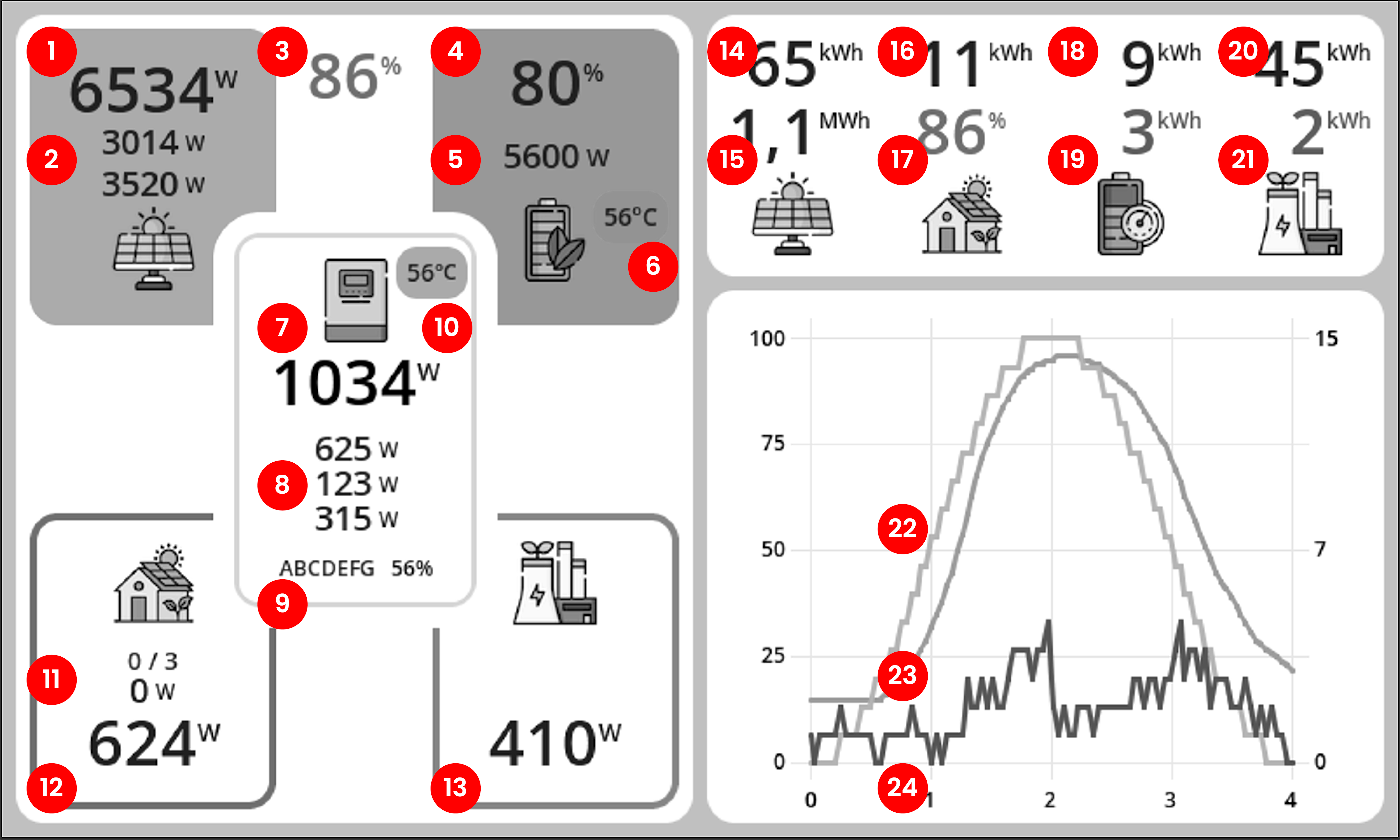
- Current PV array output
- String power (if available)
- Self-consumption ratio from solar energy
- Battery state of charge
- Battery charging/discharging power
- Battery temperature
- Total inverter power
- Load on each inverter phase (overloaded phase highlighted in red). A negative value indicates reverse power flow – typically when the battery is charged from the grid.
- Inverter serial number and WiFi signal strength
- Inverter temperature
- Number of active and paired SOLAR PLUG sockets (total power of switched-on sockets)
- Total household consumption
- Power imported from and exported to the grid
- Today’s PV production
- Total production since installation
- Today’s electricity consumption
- Today’s self-consumption ratio
- Today’s energy stored into the battery
- Today’s energy taken from the battery
- Today’s export to the grid
- Today’s import from the grid
- Graph of PV production (yellow), battery state of charge (blue) and household consumption (green).
Some daily statistics show zeros after startup for certain inverters (Victron, GoodWe). This is because the inverter does not provide these daily counters. SOLAR STATION Live calculates them itself from total counters, so they become valid after midnight.
Interactive tiles
Most tiles on the main screen can be tapped — a detail window opens with more information or controls. Close the window with the cross in the top right corner or by tapping outside it.
- Inverter tile – menu of manual inverter modes (Normal, Charge, Discharge, and Hold for Solax, GoodWe and Sofar inverters) and Intelligence activation.
- Consumption tile (house) – detailed control of paired SOLAR PLUG sockets: naming, Auto / On / Off mode, switch-on priority and, for SSRs with continuous regulation, power setting.
- Wallbox tile (EcoVolter, Solax, Teltonika) – detailed charger control window (currents, modes, statistics, START/STOP).
- Production chart – enlarged detail of the production, consumption and battery state chart.
- Spot price panel – enlarged chart with an hour-by-hour price table.
- Intelligence plan tile – plan detail: a list of upcoming mode changes with times and reasons.
- Weather strip – detailed weather forecast for your location.
Connection to inverter
The station connects automatically if it finds exactly one supported dongle and has all required credentials. After a restart it will restore the connection by itself.
If the station cannot decide which device to use, or the connection fails, a configuration screen is shown.
The station can connect directly to the inverter dongle WiFi, or it can join your home WiFi and find the inverter there (or use a manually entered IP address).
Direct connection
The station connects directly to the WiFi network broadcast by the inverter dongle. The table below shows what to fill in for each inverter type.
| Connection | WiFi | Password | IP | Serial number |
|---|---|---|---|---|
| Solax | Wifi_XXXXXX | Leave empty | Leave empty | Ignored |
| GoodWe | Solar-WiFi-XXXXXX | Default: 12345678 | Leave empty | Ignored |
| Victron | venus-XXXXXX | On dongle label | Leave empty | Ignored |
| Sofar | AP_XXXXXX | On dongle label | Leave empty | Dongle SN: XXXXXX |
| DEYE | AP_XXXXXX | On dongle label | Leave empty | Dongle SN: XXXXXX |
| GROWATT (SPH/SPA, MIN-XH/MID-XH/MOD-XH, MIN/MIX) | XGD-XXXXXX | Default: 12345678 | Leave empty | Ignored |
| Sermatec (SMT-xK-TL, Hycube HY-5K) – in preparation | USR-WIFI232-XXXXXX | gsstes123456 | Leave empty | Ignored |
| Sungrow (SH/SG) | SG-XXXXXXXXXX (activate the hotspot by pressing the dongle button 3×; it stays on for only ~30 min – we recommend the home WiFi connection instead) | No password | Leave empty | Ignored |
| FoxESS (H3-Smart, H3-Pro, P3, H1-G2-WL) – in preparation | Built-in WiFi/LAN logger – we recommend the home WiFi connection | Depends on the dongle | Enter the logger's IP address (see your WiFi router) | Ignored |
| Huawei (SUN2000) – in preparation | SUN2000-XXXXXXXX (inverter WiFi; data display only – use the Smart Dongle for control) | Default: Changeme | Leave empty | Ignored |
Connection via home WiFi
If you want to connect the station to your home WiFi network, enter the network name and password. The station will join your home network and then find the inverter there (or use the IP address you enter).
The table below shows what to fill in for each inverter.
| Connection | WiFi | Password | Inverter IP | Inverter SN |
|---|---|---|---|---|
| Solax | Your WiFi | Your password | Leave empty or enter IP | Ignored |
| GoodWe | Your WiFi | Your password | Leave empty or enter IP | Ignored |
| Victron | Your WiFi | Your password | Leave empty or enter IP | Ignored |
| Sofar | Your WiFi | Your password | Leave empty or enter IP | Dongle SN (XXXXXX from AP_XXXXXX), used as password |
| DEYE | Your WiFi | Your password | Leave empty or enter IP | Dongle SN (XXXXXX from AP_XXXXXX), used as password |
| GROWATT (SPH/SPA, MIN-XH/MID-XH/MOD-XH, MIN/MIX) | Your WiFi | Your password | Enter IP address (find it in your router) | Leave empty |
| Sermatec (SMT-xK-TL, Hycube HY-5K) – in preparation | Your WiFi | Your password | Enter IP address of the dongle (find it in your router) | Leave empty |
| Sungrow (SH/SG) | Your WiFi | Your password | Enter the IP address of the WiNet dongle (find it in your router; it usually shows up as an "espressif" device) | Leave empty |
| FoxESS (H3-Smart, H3-Pro, P3, H1-G2-WL) – in preparation | Your WiFi | Your password | Enter the logger's IP address (see your WiFi router) | Leave empty |
| Huawei (SUN2000) – in preparation | Your WiFi | Your password | Enter the IP address of the Smart Dongle or EMMA (see your WiFi router) | Leave empty |
| AlphaESS (SMILE5, SMILE-G3, SMILE-Hi) – in preparation | Your WiFi | Your password | Enter the IP address of the AlphaESS system (see your router; the system must be connected with a LAN cable) | Leave empty |
| Solinteg, M-TEC Energy Butler GEN3, WattSonic GEN3, Sunways – in preparation | Your WiFi | Your password | Select your brand and enter the IP address of the dongle (see your WiFi router) | Leave empty |
| SMA (Sunny Tripower / Sunny Boy Smart Energy) – in preparation | Your WiFi | Your password | Enter the IP address of the inverter (see your WiFi router) | Leave empty |
| Fronius GEN24 Plus | Your WiFi | Your password | Enter the IP address of the inverter (see your WiFi router) | Leave empty |
| RCT Power (Power Storage DC/AC) – in preparation | Your WiFi | Your password | Enter the IP address of the inverter (see your WiFi router) | Leave empty |
| Solis (hybrid inverters) – in preparation | Your WiFi | Your password | Enter the IP address of the datalogger (see your WiFi router) | Datalogger serial number (label) |
| Solplanet (hybrids with LAN port) – in preparation | Your WiFi | Your password | Enter the IP address of the inverter's LAN port (see your WiFi router) | Leave empty |
| SolarEdge (Home Hub, StorEdge) – in preparation | Your WiFi | Your password | Enter the IP address of the inverter (see your WiFi router) | Leave empty |
| FENECON Home (FEMS) – in preparation | Your WiFi | Your password | Enter the IP address of FEMS (see your WiFi router) | Leave empty |
| KOSTAL PLENTICORE – in preparation | Your WiFi | Your password | Enter the IP address of the inverter (see your WiFi router) | Leave empty |
Supported inverters
SOLAX
SOLAR STATION Live usually connects to SOLAX automatically with default settings. If it does not, follow these steps:
- Check if the WiFi network Wifi_XXXXXX (dongle WiFi) is visible. If not, it might be hidden – disable SSID hiding in the SOLAX Cloud mobile app (Menu → Settings → Network → Pocket WiFi SSID Broadcast).
- The dongle WiFi is open (no WiFi password), but the API access is protected. The default API password is printed on the dongle label and starts with the letter “S”.
GOODWE
- Check that WiFi network Solar-WiFi-XXXXXX (XXXXXX = dongle serial number) is visible. The default password is 12345678.
- If the dongle is not visible, press the dongle button briefly (1 s) to reset it and wait about 3 minutes for it to restart.
VICTRON
Victron broadcasts a WiFi network venus-XXXXXX (XXXXXX = device serial). The password is printed on the label.
For proper operation you must enable Modbus TCP in the menu (Menu → Settings → Services → Modbus TCP).
SOFAR
Sofar inverter broadcasts a WiFi network AP_XXXXXX (XXXXXX = dongle serial number). The password is printed on the dongle label.
You must enter the dongle serial number (XXXXXX from the WiFi network name AP_XXXXXX). The station communicates via the proprietary Solarman protocol on port 8899.
GROWATT
We support three Growatt families — the inverter type is detected automatically on the first connection, no manual switch is needed:
- SPH / SPA – hybrid inverters with battery, single- (SPH 3000–10000) and three-phase (SPH TL3 BH-UP, SPA);
- MIN-XH / MID-XH / MOD-XH (TL-XH) – the newer hybrid generation with battery;
- MIN / MIX (TL3-X) – classic non-hybrid string inverters without battery.
You must update the firmware of your Shine WiFi-X dongle. Firmware version 3.1.1.1 or newer is required, with Modbus TCP enabled. With older firmware the station will not work.
The update is done via the ShinePhone app. Proceed as if you were changing the WiFi network for the dongle. During the process, the app will offer a firmware update – confirm it. Video tutorial (YouTube).
Unfortunately, the WiFi dongle does not provide any auto-discovery for its IP address in your LAN, unlike some other inverters. You must enter the IP of your Shine WiFi-X dongle into the station manually. You can find it in your router device list – it usually appears as a device named “Espressif”.
SERMATEC
In preparation – testing, looking for testers. We are preparing support for Sermatec hybrid inverters SMT-5K, SMT-6K and SMT-10K-TL (single-phase LV and three-phase TH) and Hycube HY-5K-TL-LV. The station communicates directly with the inverter through its WiFi module using the proprietary OSIM protocol on TCP port 8899 – no cloud is needed.
The Sermatec WiFi dongle (USR-WIFI232-B2) broadcasts an AP network starting with USR-WIFI232 by default. The station detects it automatically. Default IP: 10.10.100.254, AP password: gsstes123456. Hycube inverters are detected automatically by a WiFi network starting with ST000; when selecting manually, choose the Sermatec/Hycube type.
The station can run alongside the Sermatec app and cloud.
SUNGROW
We support Sungrow hybrid inverters of the SH series (SH-RS single-phase, SH-RT and SH-T three-phase) including intelligent control and the export power limiter. Grid-tied SG series inverters (without a battery) are supported in production-monitoring mode.
The station communicates via Modbus TCP on port 502 directly with the WiNet-S / WiNet-S2 communication dongle – no cloud, all data is read locally from your network.
Modbus TCP is disabled in the dongle by default – it must be enabled once:
- In the iSolarCloud app open Settings → Device → communication module (WiNet) and set “Modbus TCP 502” to Open. Alternatively via the dongle web interface: press the dongle button 3× (activates the SG-XXXXXXXXXX hotspot), connect to it and open https://11.11.11.1 in a browser (login admin / pw8888).
- On the WiNet-S2 dongle additionally add the station's IP address to the whitelist of allowed devices (or disable the whitelist).
- Check the dongle firmware – WiNet-S at least version P027.B002, WiNet-S2 at least V300 P014.B001 (updates are delivered automatically via iSolarCloud).
The dongle offers no auto-discovery on your home network – you need to enter the WiNet dongle's IP address into SOLAR STATION Live. You can find it in your WiFi router's list of connected devices (the dongle usually shows up as an “espressif” device).
FOXESS
In preparation – testing, looking for testers. Support has not yet been verified on a real installation; if you have a compatible FoxESS inverter and would like to help with testing, please contact us.
We are preparing support for FoxESS hybrid inverters with a built-in WiFi/LAN logger: H3-Smart (including the “-M” variants), H3-Pro, P3 and the single-phase H1-G2-WL, including intelligent battery control and, on the three-phase series, the export limiter.
The station communicates via Modbus TCP on port 502 directly with the inverter's logger on your network. The FoxESS cloud and app keep working in parallel.
- Connect the inverter's logger to your home WiFi (usually via the FoxESS app) or with a LAN cable. Nothing needs to be enabled in the app. We recommend up-to-date inverter and logger firmware.
- Enter the logger's IP address into SOLAR STATION Live. You can find it in your WiFi router's list of connected devices.
HUAWEI
In preparation – testing, looking for testers. Support has not yet been verified on a real installation; if you have a Huawei inverter and would like to help with testing, please contact us.
We are preparing Huawei SUN2000 hybrid inverters (single-phase L1, three-phase M1, newer MB0/MAP0) with a LUNA2000 battery, including smart battery control and the feed-in limiter. Inverters without a battery will be supported in production monitoring mode with the feed-in limiter.
The station talks Modbus TCP on port 502 to the Smart Dongle (SDongleA-05) or the EMMA unit on your network. The FusionSolar cloud and app keep working in parallel. With EMMA the station currently shows data and supports the feed-in limiter; smart battery control with EMMA is in preparation.
Modbus TCP is disabled from the factory – it has to be enabled once by the installer (or by you with installer access):
- In the FusionSolar app open Me → Device commissioning, connect to the inverter WiFi SUN2000-… (default password Changeme) and log in as installer – default password 00000a (if your installer changed it, ask them to do the setting). The installer login is only needed to enable Modbus TCP; the station itself needs no password.
- Settings → Communication configuration → Dongle parameter settings → Modbus TCP → “Enable (unrestricted)”. If the option is missing, the installer can enable it in FusionSolar web.
- In SOLAR STATION Live select the Huawei type and enter the IP address of the Smart Dongle (find it in your router's list of connected devices). The dongle must keep internet access.
Installations with EMMA: connect EMMA to your home network (cable recommended). In the FusionSolar app, in Device commissioning, connect to EMMA as installer and under Settings → Communication configuration → Modbus TCP set Connection = Enable, TLS = off and the allowed client IP to the station's IP address (or 0.0.0.0). Then enter the IP address of EMMA in the station.
Connecting the station directly to the inverter WiFi (SUN2000-…) only allows data display, without control and feed-in limiter.
ALPHAESS
In preparation – testing, looking for testers. Support has not yet been verified on a real installation; if you have an AlphaESS system and would like to help with testing, please contact us.
We are preparing AlphaESS SMILE5, SMILE-G3, SMILE-Hi and SMILE-T10 hybrid systems, including smart battery control and the feed-in limiter. The station communicates via Modbus TCP on port 502 directly with the system's control unit (EMS) in your network – no cloud. The AlphaESS app and cloud keep working in parallel.
The AlphaESS system must be connected to your home network with a network (LAN) cable. Connection via the AlphaESS WiFi module is not supported.
- Connect the control unit (EMS) of the AlphaESS system to your home router with a network cable.
- Make sure Modbus TCP communication is enabled on the system. On recent firmware it is usually enabled from the factory; if the station cannot connect, ask AlphaESS support or your installer to enable it.
- In SOLAR STATION Live select the AlphaESS type and enter the IP address of the AlphaESS system. You will find it in your router's list of connected devices.
SOLINTEG / M-TEC / WATTSONIC / SUNWAYS
In preparation – testing, looking for testers. Support has not yet been verified on a real installation; if you have one of these inverters and would like to help with testing, please contact us.
We are preparing Solinteg, M-TEC Energy Butler GEN3, WattSonic GEN3 and Sunways hybrid inverters, including intelligent battery control and export limiting. The station communicates directly with the inverter's original communication dongle on your network – no cloud. The manufacturer's app and cloud keep working in parallel.
- Connect the inverter's communication dongle to your home WiFi (usually via the manufacturer's app), or with a LAN cable if the dongle supports it. Nothing needs to be enabled in the app. Older inverters may need a firmware update – your installer will take care of it.
- In the SOLAR STATION Live settings, select the brand shown on your inverter's label in the inverter list: Solinteg, M-TEC (for M-TEC Energy Butler GEN3), WattSonic GEN3 or Sunways.
- Enter the IP address of the dongle. You will find it in your WiFi router's list of connected devices.
SMA
In preparation – testing, looking for testers. Support has not yet been verified on a real installation; if you have an SMA inverter and would like to help with testing, please contact us.
We are preparing Sunny Tripower Smart Energy and Sunny Boy Smart Energy hybrid inverters with battery, including intelligent battery control and export limiting. The station communicates via Modbus TCP on port 502 directly with the inverter on your network (LAN or the inverter's WiFi) – no cloud and no additional hardware. Sunny Portal and Sunny Home Manager keep working in parallel.
Modbus TCP is disabled by default – your installer enables it once:
- In the inverter's web interface (address https://<inverter IP> or via the SMA 360° app) log in as Installer.
- Device parameters → External communication → Modbus → TCP server: enable (Activated = Yes, port 502). Leave the device address (Unit ID) at the default 3.
- On Sunny Boy Smart Energy, also enable the "Modbus P-settings" parameter (active power setpoint via Modbus), otherwise the inverter ignores the station's commands.
- For export limiting, the installation must have active power limitation at the grid connection point enabled, with measurement from an SMA Energy Meter (or Sunny Home Manager).
- In SOLAR STATION Live, select the SMA type and enter the inverter's IP address. You will find it in your router's list of connected devices.
FRONIUS
We support Fronius GEN24 Plus hybrid inverters with a battery, including intelligent battery control. The station communicates via Modbus TCP on port 502 directly with the inverter on your network (LAN or the inverter's WiFi) – no cloud and no additional hardware. Solar.web keeps working in parallel. The export limiter is not yet available for Fronius.
In the inverter's web interface (address http://<inverter IP>) set once:
- Communication → Modbus: enable Modbus server via TCP, port 502, SunSpec Model Type int + SF, leave the meter address at the default (200).
- In the same place enable "Allow control" – without it the station only shows data and does not control the battery.
- Devices → Battery: enable "Allow battery charging from public grid" – otherwise the charge-from-grid mode charges only from PV.
- Energy management → Battery management: delete all "Time-dependent battery control" rules so they do not conflict with the station's control.
- In SOLAR STATION Live, select the Fronius type and enter the inverter's IP address. You will find it in your router's list of connected devices.
RCT POWER
In preparation – testing, looking for testers. Support has not yet been verified on a real installation; if you have an RCT Power inverter and would like to help with testing, please contact us.
We are preparing support for RCT Power Storage DC and Power Storage AC inverters with RCT Power Battery, including intelligent battery control. The station communicates directly with the inverter via its built-in WiFi or LAN on your network – no cloud and no additional hardware. The RCT Power App and the portal keep working in parallel. The export limiter is not yet available for RCT Power.
- Connect the inverter to your home network – with a LAN cable, or to your home WiFi via the RCT Power App (inverter network settings). Nothing needs to be enabled in the inverter or in the app.
- In the SOLAR STATION Live settings, select the RCT Power type and enter the inverter's IP address. You will find it in the RCT Power App or in your router's list of connected devices.
SOLIS
In preparation – testing, looking for testers. Support has not yet been verified on a real installation; if you have a Solis hybrid inverter and would like to help with testing, please contact us.
We are preparing support for Solis hybrid inverters with a battery, including intelligent battery control and export limiting. The station communicates directly with the inverter's communication dongle (datalogger) on your network. Solis grid-tied (string) and off-grid inverters are not supported.
- The inverter's datalogger must be connected to your home network (usually it already is, for the Solis app).
- In the SOLAR STATION Live settings, select the Solis type, enter the datalogger's IP address (you will find it in your router's list of connected devices) and its serial number from the label on the datalogger.
- For export limiting, the inverter must have an energy meter or current sensor installed and configured at the grid connection point.
SOLPLANET
In preparation – testing, looking for testers. Support has not yet been verified on a real installation; if you have a Solplanet hybrid inverter with a LAN port and would like to help with testing, please contact us.
We are preparing support for Solplanet hybrid inverters with a LAN port (e.g. the ASW H-T2/T3 series in the version with a TCP/IP port, ASW-SH), including intelligent battery control. The station communicates via Modbus TCP directly with the inverter on your network – no cloud and no additional hardware. The Solplanet app keeps working in parallel. Inverters without a LAN port on the inverter (connected only via the dongle) are not supported. The export limiter is not yet available for Solplanet.
- Connect the inverter's LAN port (marked TCP/IP or Ethernet in the communication box) to your home router with a network cable. The Solplanet dongle is not enough – but keep it connected for the app.
- Find the inverter's IP address (not the dongle's) in your router's list of connected devices.
- In the Solplanet app, leave the Custom mode schedule empty (no time slots) so it does not conflict with the station's battery control.
- In SOLAR STATION Live, select the Solplanet type and enter the inverter's IP address.
SolarEdge
In preparation – testing, looking for testers. Support has not yet been verified on a real installation; if you have a SolarEdge hybrid inverter with a battery and would like to help with testing, please contact us.
We are preparing support for SolarEdge Home Hub (single-phase and three-phase) and StorEdge hybrid inverters with a battery, including intelligent battery control and export limiting. The station communicates via Modbus TCP directly with the inverter on your network – no cloud and no additional hardware. SolarEdge monitoring and the mySolarEdge app keep working in parallel.
One-time setup (usually done by the installer):
- Connect the inverter to your home router with a LAN cable. This communication does not work over the inverter's WiFi.
- In the SetApp app choose Commissioning → Site Communication → Modbus TCP → Enable and keep port 1502 (on older inverters with a display: Communication → LAN Conf → Modbus TCP).
- For export limiting, the installation needs a SolarEdge energy meter at the grid connection point and export limitation enabled in SetApp (Power Control → Site Limit Control → Export Control).
- In SOLAR STATION Live, select the SolarEdge type and enter the inverter's IP address. You will find it in your router's list of connected devices.
FENECON
In preparation – testing, looking for testers. Support has not yet been verified on a real installation; if you have a FENECON Home system and would like to help with testing, please contact us.
We are preparing support for FENECON Home systems (Home 10, Home 20, Home 30, Home 6/10/15 Gen2). The station communicates directly with the FEMS energy manager on your network – FEMS controls the whole system, so the station does not connect to the inverter or the battery.
- FEMS must be connected to your home router with a network cable (it usually already is, for FENECON online monitoring).
- In the SOLAR STATION Live settings, select the FENECON type and enter the IP address of FEMS (you will find it in your router's list of connected devices). The serial number is not needed.
- Live data and daily statistics work right away, without any extra fees.
- Intelligent battery control requires the paid FEMS app “Modbus/TCP schreibend” (write access). You can buy it from your installer or FENECON dealer; redeem the license key in the FEMS App Center. Keep the default settings during installation (“Api-Timeout” 60 seconds – do not set 0). Without this app the station only displays the system.
- The export limiter is not yet available for FENECON – export limitation is controlled by FEMS according to the installer's settings.
KOSTAL
In preparation – testing, looking for testers. Support has not yet been verified on a real installation; if you have a KOSTAL hybrid inverter with a battery and would like to help with testing, please contact us.
We are preparing support for PLENTICORE plus, PLENTICORE G3 and PLENTICORE MP G3 hybrid inverters with a battery, including intelligent battery control. The station communicates via Modbus TCP on port 1502 directly with the inverter on your network – no cloud and no additional hardware. KOSTAL Solar Portal and the app keep working in parallel. The export limiter is not yet available for KOSTAL.
- Connect the inverter to your home router with a network cable (PLENTICORE G3 and MP G3 can also use WiFi).
- In the inverter's web interface (address http://<inverter IP>) log in as plant owner and enable Modbus in Settings → Modbus / SunSpec (TCP). Keep port 1502, Unit-ID 71 and the default byte order.
- For intelligent battery control, the installer (requires the service code) must set battery control to “External via protocol (Modbus TCP)” in Service menu → Battery settings and set the timeout to 60 seconds. Without this step the station shows data but does not control the battery. When the station is not controlling the battery (or is switched off), the inverter returns to its normal operation within a minute.
- The inverter must have an energy meter connected (KOSTAL Smart Energy Meter or another supported one), otherwise the station cannot show grid import and export.
- In SOLAR STATION Live, select the KOSTAL type and enter the inverter's IP address (you will find it in your router's list of connected devices).
SOLAR PLUG
SOLAR STATION Live creates its own WiFi network (SoftAP) to which the sockets connect. The sockets communicate exclusively with the station – they are not available in the Shelly cloud, the Shelly app, or any other network. The station is the sole controller of the sockets.
Supported sockets
| Model | WiFi prefix (during pairing) |
|---|---|
| Shelly Plug S | shellyplug-s- |
| Shelly Plug | shellyplug- |
| Shelly Plus Plug S | ShellyPlusPlugS- / PlusPlugS- |
| Shelly Plug S Gen3 | ShellyPlugSG3- |
| Shelly Plug M Gen3 | ShellyPlugMG3- |
| Shelly Pro 1PM | ShellyPro1PM- / Pro1PM- |
| Shelly Plus 1PM | ShellyPlus1PM- / Plus1PM- |
| Shelly 1PM Gen3 | Shelly1PMG3- |
| Shelly Pro 3 | ShellyPro3- / Pro3- |
| Shelly Pro Dimmer 1PM | ShellyProDM1PM- |
| Shelly Dimmer Gen3 | Shelly0110DimG3- |
| Shelly 1 Mini Gen3 | Shelly1MiniG3- |
Pairing
On first power-up, the socket enters pairing mode – it broadcasts an open WiFi network with the prefix listed above. You can trigger pairing at any time by holding the button on the socket for 10 seconds (the blue LED will light up).
SOLAR STATION Live automatically searches for these WiFi networks, connects to the socket and configures it to join the station's own network (SoftAP). During configuration, the LED colour indicates the state:
- Blue: pairing mode active
- Red: configuration in progress
- Orange: device successfully configured and active
After successful pairing, the socket appears in the household consumption tile. Up to 8 sockets can be connected to the station.
Socket switching
SOLAR STATION Live controls sockets automatically according to internal rules. No manual configuration is required. The energy balance is monitored and the home battery is prioritised. As soon as the battery is charged and/or there are PV surpluses, the station starts switching sockets on in a cascade. Each socket stays on for at least 5 minutes.
You can turn the socket on manually with its button – in that case automatic control is temporarily disabled. To re-enable automatic control, simply turn the socket off with the button again.
With a socket switched on, some power may be taken from the battery, but never for more than the 5-minute minimum. In borderline PV conditions the station will cycle sockets on and off to maximise the use of PV energy.
Detailed plug control
Tapping the consumption tile (house) opens a window listing all paired sockets. For each socket you can:
- Name it – by choosing from presets (Boiler, Heating element, Pool, Space heater, A/C, Pump, Washer, Dryer).
- Choose a mode:
- Auto – default, the station switches the socket automatically according to surpluses (see above).
- On – the socket is permanently on regardless of surpluses.
- Off – the socket is permanently off; the station will not switch it on.
- Set the switch-on priority – Low (default), Medium or High. A socket with a higher priority is switched on first when there is a surplus and switched off last. Sockets with the same priority take turns as before.
- Set the SSR power – for an SSR box with continuous regulation, a slider for a fixed power setting (10–100 %) is shown in On mode. In Auto mode the station regulates the power itself.
A switched-on socket shows its current power, and every socket shows its total energy consumed.
All settings are stored in the station's memory and survive a restart – when a socket reconnects, they are automatically assigned back to it.
Wallbox – selection in settings
In the station settings (Wallbox card) choose which wallbox you have: EcoVolter, Solax or Teltonika. If you have no wallbox, choose None – the station will then not search for one. The default is EcoVolter.
After a firmware update: if you have a Solax wallbox, open the settings and select Solax in the Wallbox card. Without this the wallbox tile will not be shown.
In SMART mode some battery energy may be used for charging, but at least 80 % of your home battery capacity is always kept in reserve.
EcoVolter PRO (2nd generation)
EcoVolter PRO (2nd generation) is fully compatible with SOLAR STATION Live.
Dynamic charging power control – SMART mode – is supported.
If you leave the IP address field empty, the station finds the wallbox on the network by itself. If that fails, enter the IP address and the device ID (you can find them in the EcoVolter app).
After pairing ECOVOLTER PRO (2nd generation), a new tile appears on the display with a switch. When you enable SMART mode on this tile, the station automatically optimises charging power according to the current household energy balance.
Solax Wallbox
Solax Wallbox is fully compatible with SOLAR STATION Live.
Dynamic charging power control – SMART mode – is supported.
The station finds the wallbox on the network by itself (leave the IP address field empty). If it does not find it (e.g. it is in a different part of the network), enter its IP address and the serial number (SN) of the wallbox Wi-Fi module – you can find it on the module label or in the SolaX Cloud app.
Click the wallbox tile to open the detail: current power, phase currents, energy of the current charging session, Start/Stop buttons, charging current setting and the SMART switch.
After pairing with the Solax Wallbox, a new tile appears on the display with a switch. When you enable SMART mode on this tile, the station automatically optimises charging power according to the current household energy balance.
Teltonika TeltoCharge (EVC2)
The Teltonika TeltoCharge (EVC2) wallbox is compatible with SOLAR STATION Live. Dynamic charging power control – SMART mode – is supported as well.
Preparing the wallbox (once, in the TeltoCharge app)
- Connect the wallbox to the same network as the station (Ethernet or Wi-Fi).
- In the TeltoCharge app open User menu → Installer menu → Load Management.
- Select Modbus TCP and the Secondary mode and turn it on.
- Find out the IP address of the wallbox (in the app or in your router). We recommend reserving it in the router so that it does not change.
Station settings
In the Wallbox card select Teltonika and enter the IP address of the wallbox.
Control
The tile shows the charging power and energy. Click it to open the detail with the Start/Stop buttons, the current setting (6 A up to the limit set by the installer) and the SMART switch. In SMART mode the station sets the current according to the PV surplus – charging starts at 6 A and gradually increases; when there is not enough surplus it reduces the current and finally stops charging.
When the station is not communicating
If communication with the station is lost (Wi-Fi outage, restart, update), after a short time (default 30 s) the wallbox switches to the fallback current set by the installer in the TeltoCharge app (default 6 A). Charging therefore continues at a reduced current. If you want no charging at all without the station, set the fallback current to 0 A in the TeltoCharge app.
Electricity spot prices
Once a bidding zone is selected in the settings, SOLAR STATION Live shows a panel with the current electricity spot price and a chart of prices for today and tomorrow (tomorrow's prices appear once published by the exchange, usually in the afternoon). The displayed value is the pure market (spot) price — without VAT, distribution fees or supplier margin. Tapping the panel opens an enlarged chart with an hour-by-hour price table.
Price colour coding
The current price and the chart bars are coloured by price level:
- Blue – negative price (below 0)
- Green – cheap electricity: up to 0.06 EUR/kWh
- Orange – medium price: between 0.06 and 0.12 EUR/kWh
- Red – expensive electricity: 0.12 EUR/kWh and above
The thresholds are fixed in euros and converted to your local currency using the current daily exchange rate.
Intelligence BETA
The station can automatically switch inverter modes based on current spot electricity prices, predicted production and consumption, optimising the economic benefit of your PV system — buying energy during cheap hours, selling during expensive ones, or arbitrage.
For an in-depth explanation of the internal algorithms see the dedicated document on Intelligence; below is a practical setup guide.
Currently supported inverters: Solax (hybrid Gen 4 and newer, WiFi dongle), GoodWe ET, Sofar Solar HYD, Deye, Sungrow (SH), Fronius GEN24 Plus. In preparation: FoxESS (H3-Smart, H3-Pro, P3, H1-G2-WL), Sermatec (PCU firmware 5.0 or newer), Huawei with Smart Dongle, AlphaESS (SMILE5, SMILE-G3, SMILE-Hi), Solinteg, M-TEC Energy Butler GEN3, WattSonic GEN3, Sunways, SMA (Sunny Tripower Smart Energy, Sunny Boy Smart Energy), RCT Power (Power Storage DC/AC), Solis (hybrid inverters), Solplanet (hybrids with LAN port), SolarEdge (Home Hub, StorEdge), FENECON Home (FEMS), KOSTAL (PLENTICORE plus, PLENTICORE G3, PLENTICORE MP G3).
Before activation: verify manual control works
Before turning Intelligence on, we recommend confirming that the station can actually control your inverter. Tap the inverter tile and try each mode in turn:
- NORMAL — the inverter runs normally (Self-Use), with no forced charging/discharging.
- CHARGE — the battery should start charging from the grid.
- DISCHARGE — the battery should start discharging into the grid.
If a mode doesn't behave as expected, check the inverter's own settings (for Deye, e.g. enabling Grid Charge in Battery Settings). Intelligence is subject to the same restriction and won't work reliably without it.
Activation
- Tap the eye icon in the top-right corner, or tap the inverter tile → INTELLIGENCE.
- Fill in battery parameters and prices (below) and press Save.
On first open, reasonable defaults are pre-filled for a typical Central-European tariff. You can restore them anytime with the Reset button.
Battery settings
- Battery cost per kWh — the cost of one charge/discharge cycle of 1 kWh. Calculate as purchase price ÷ (capacity × cycle count). Typically 0.06–0.10 €/kWh.
- Min / Max SOC — grid trading limits: the battery is discharged to the grid only above Min SOC and charged from the grid only up to Max SOC. Home consumption is still covered down to the inverter's minimum and solar charges up to 100 % (typically 10 % and 95 %).
- Capacity / Max charge / Max discharge — usually auto-detected from the inverter; override if needed.
Buy and Sell price
The price is always stored as a linear formula price = K × spot + Q. You enter it in one of three modes (separately for buy and sell):
- Spot (default) — for buy you enter VAT % (e.g. 21) and per-kWh fee (e.g. 2.50). For sell you enter buy-back % (e.g. 100) and fee (e.g. 0.50). The app computes K and Q.
- Fixed — a fixed per-kWh price (e.g. 4.00). The spot price is ignored.
- Custom — enter K and Q directly. For advanced users with unusual tariff structures.
Default for buy: Spot, VAT 21 %, fee 2.50 per kWh. Default for sell: Spot, 100 % of spot minus 0.50 per kWh fee (matches most current Czech/EU buy-back schemes).
Tariff exceptions (HT/LT)
If you have a two-rate tariff or a special price for a portion of the day, add an exception using the + Add button. Each exception specifies:
- Type — Buy / Sell (which price the exception overrides)
- Mode — Spot / Fixed / Custom (same as for the main price)
- From–To — time range in 15-minute steps
- Applies to — All days / Workdays / Weekend / Saturday / Sunday
- Value(s) according to the selected mode
Up to 8 exceptions in total. Example: a low tariff 22:00–06:00 on workdays — Buy / Spot / 22:00–06:00 / Workdays / VAT 21 % / Fee 0.05.
Manual override and status indication
Even with Intelligence active, you can always switch the inverter mode manually by tapping the inverter tile:
- INTELLIGENCE (blue badge) — automatic control
- NORMAL (green) — Self-Use without optimisation
- CHARGE (red) — forced charging from grid
- DISCHARGE (blue) — forced discharging to grid
- HOLD (grey) — the battery neither charges nor discharges; solar production covers the house, surplus goes to the grid and any shortfall is taken from the grid. Useful e.g. while charging an electric car, so the home battery is not drained into it. Solax, GoodWe and Sofar only; Intelligence never uses this mode.
While Intelligence is active, a plan tile is shown with the current mode and estimated daily savings. Tapping it reveals the detail — a list of upcoming mode changes with times and reasons.
Feed-in limiter NEW
The Feed-in limiter feature automatically adjusts the maximum power delivered to the grid (export) based on the current spot electricity price. It is especially useful during hours with negative prices when exporting to the grid is not worthwhile.
Currently supported on Solax, GoodWe, Deye, Sofar and Sungrow inverters. The configured power limit (W) is applied to the inverter.
Sermatec (in preparation): the limiter requires a connected energy meter and export protection enabled in the inverter. Enable it once in the Sermatec app: switch the inverter off, enable export protection (anti-backflow) in the settings and switch the inverter back on. Without export protection the station does not set the limit. If a tariff schedule (Peak-Valley) with more than one period is configured in the inverter, the limiter is not available yet.
Setup
- From the main screen open Wi-Fi Setup and find the Feed-in limiter card in the middle column (next to the inverter card). The card is shown only for supported inverters.
- Toggle the switch to enable the feature.
- Enter the price threshold (default 0). When the spot price is below this threshold, the “negative price” limit is applied.
- Enter the power at positive price in W (default 1000). This value sets the export limit when the price is above the threshold.
- Enter the power at negative price in W (default 0). This value sets the export limit when the price is below the threshold (typically 0 W = export fully stopped).
- Press Save.
Status visualisation
A badge with the active export limit (e.g. <1000W) is shown on the Grid tile in the main dashboard. Its colour reflects the current spot price:
- Green – the spot price is at or above the threshold.
- Orange – the spot price is below the threshold.
The station automatically checks the price at every quarter change and immediately updates the inverter settings when needed.
Weather forecast NEW
SOLAR STATION Live can display a weather forecast for your location directly on the main screen. A narrow strip with the upcoming forecast appears below the spot price chart.
Location setup
- From the main screen open Wi-Fi Setup.
- In the settings find the Weather – location field (below the spot price settings) and enter a town name or address (e.g. Zlín).
- Press Save. The station looks up the geographic coordinates on its own and downloads the forecast.
The forecast refreshes automatically every hour. If you leave the field empty, the weather strip is not shown.
What the strip shows
- Upcoming 3-hour slots – each slot shows the time, a coloured weather icon and the temperature.
- Day and night icons – at night a moon is shown instead of the sun.
- Sunrise and sunset – the moments of sunrise (up arrow) and sunset (down arrow) are also shown between the slots, with the exact time to the minute.
Tapping the weather strip opens a detailed forecast in an enlarged window.
The weather forecast also feeds into Intelligence – the solar radiation forecast is used to estimate future photovoltaic production, which makes charge and sell planning more accurate.


