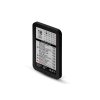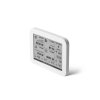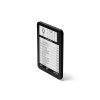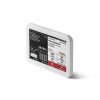
EVENT STATION 10"
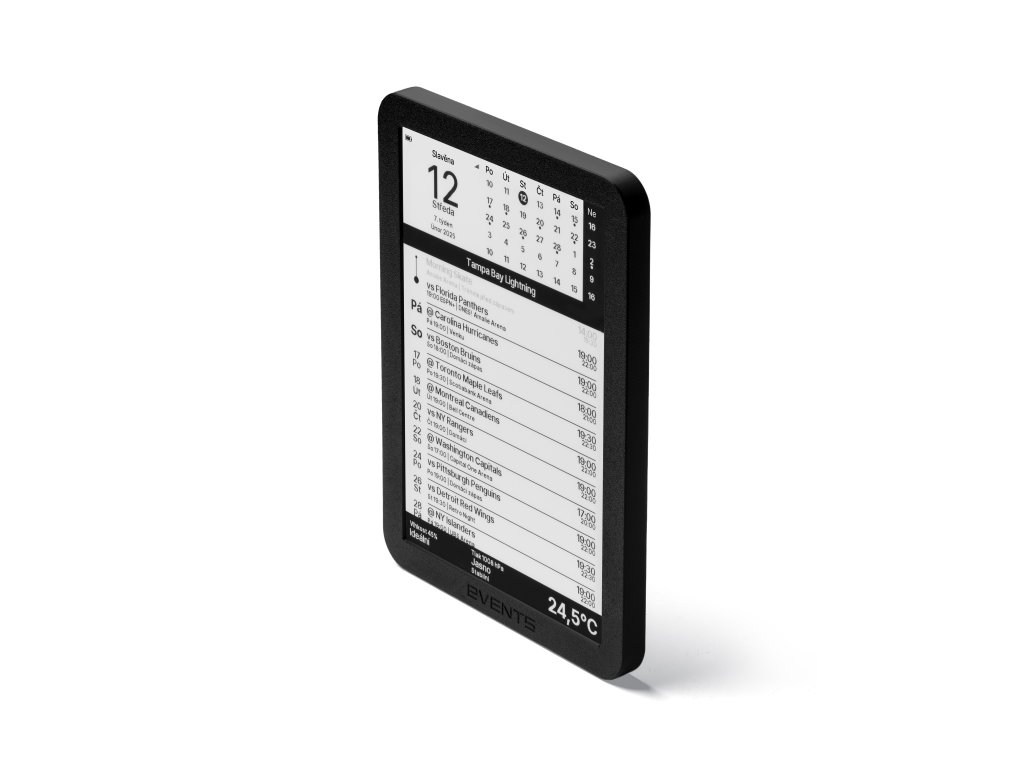
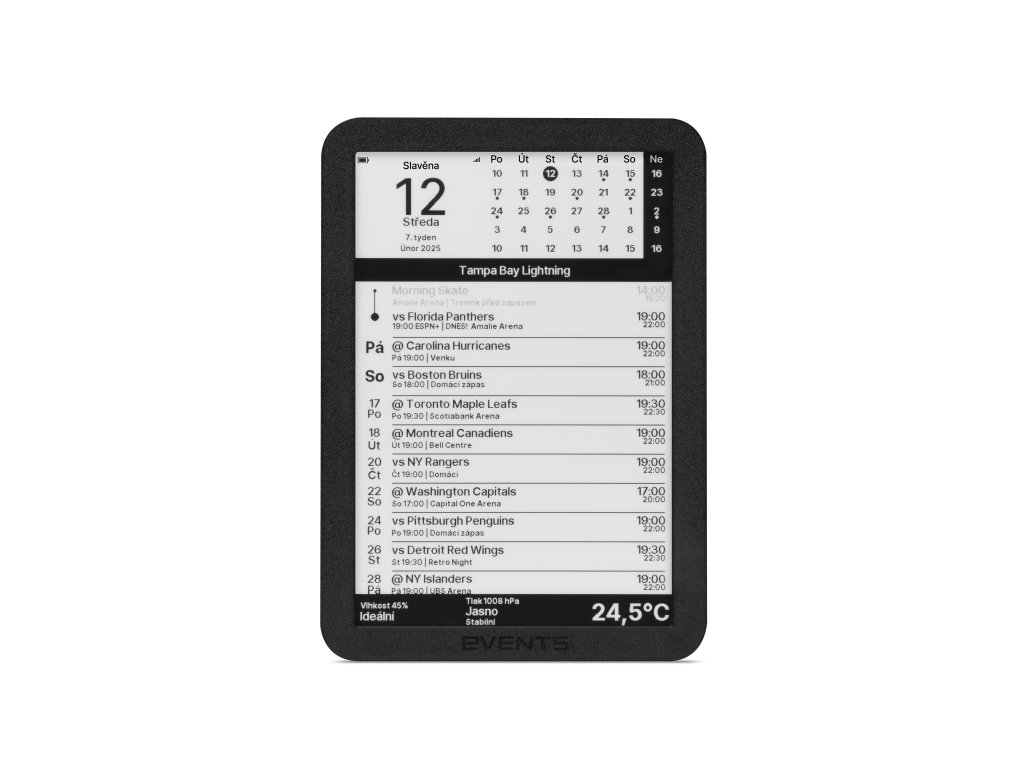
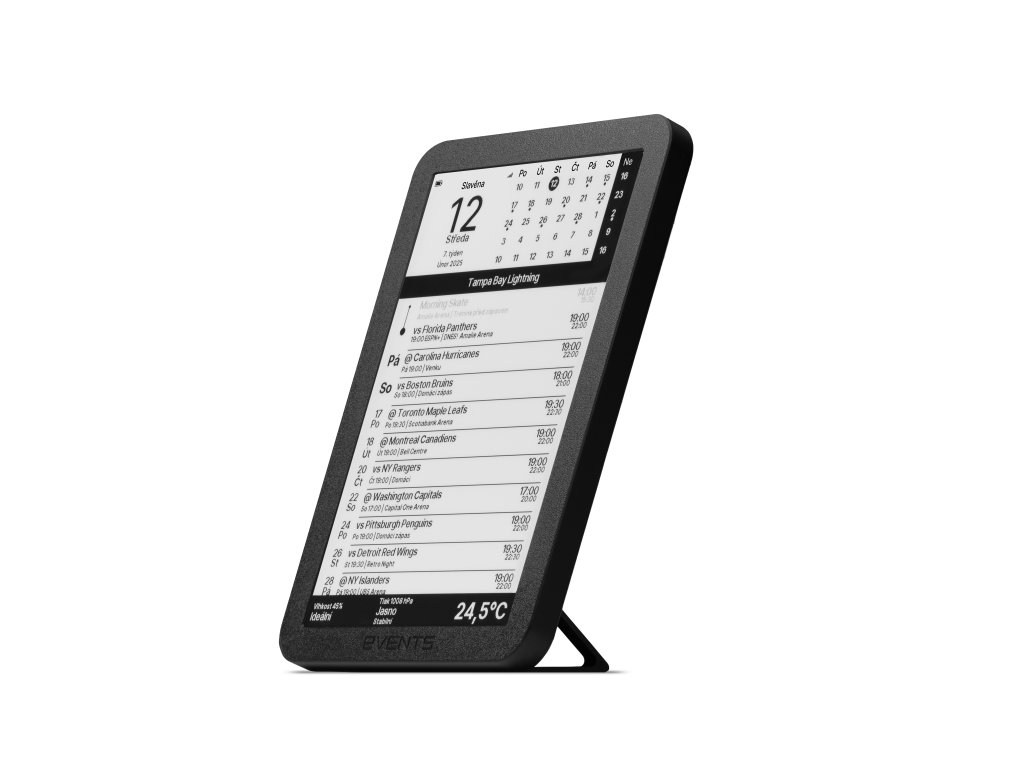
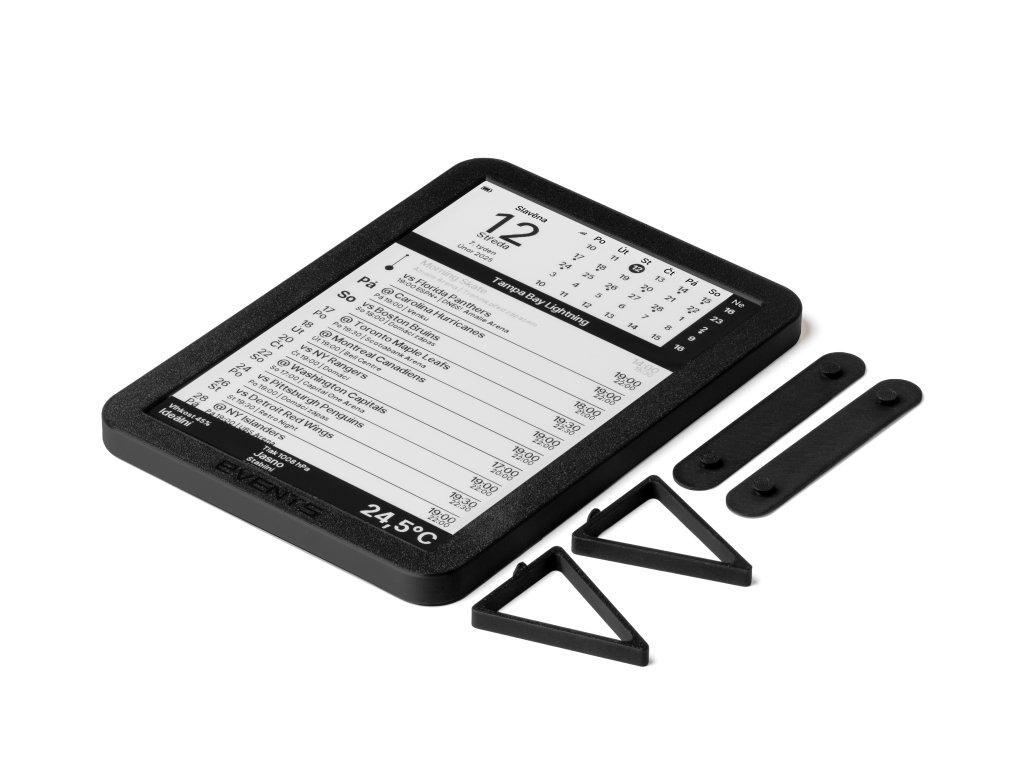
EVENT STATION Smart wall-mounted e-ink calendar that displays up to 8 online calendars (Google, iCloud, iCal…) in a single clear overview. Readable like paper, without backlight and without distraction. It also includes a home weather station – temperature, humidity, and air pressure. One glance and you know what matters today.
| Category: | Monitoring |
|---|---|
| Weight: | 0.3 kg |

Event Station - User Manual
Event Station
Smart e-ink calendar for your home
Table of Contents
- Introduction
- First Startup
- WiFi Setup
- Calendar Setup
- Timezone Setup
- Altitude Setup
- Event Filtering
- Calendar Display
- Weather Station
- Changing Settings
- Factory Reset
- Firmware Update
- Power Saving Mode
- Technical Specifications
1. Introduction
Event Station is an e-ink calendar display that shows events from your online calendars. It connects to WiFi, downloads events from up to 8 calendars, and displays them on an 800×480 pixel e-paper display.
Main features:
- Display up to 32 calendar events
- Support for iCal and CalDAV formats (Google Calendar, Apple iCloud, Nextcloud, etc.)
- Mini calendar with 5 weeks, dots marking days with events
- Optional weather station (temperature, humidity, pressure)
- Battery operation with long life thanks to deep sleep
2. First Startup
After first power-on:
- The display shows the Event Station logo and version number
- After 5 seconds, WiFi hotspot information appears
- You will see a QR code for connection and the WiFi network name
WiFi network name format: EVENTS-XXXXXXXXXXXX (where X are unique characters for your device)
3. WiFi Setup
Connection steps:
- On your phone or computer, connect to the EVENTS-XXXXXXXXXXXX WiFi network (no password)
- The configuration page will open automatically (captive portal)
- If it doesn't open automatically, enter the address shown on the display (e.g.,
http://192.168.4.1) in your browser - Select your home WiFi network from the list
- Enter the WiFi password
- Click Save and Connect
After successful connection, the device will connect to your WiFi network and start downloading calendars.
4. Calendar Setup
The device supports up to 8 calendars simultaneously. Events from all calendars are merged and displayed together.
Supported URL formats:
webcal://...- standard shared calendar linkhttps://...- HTTPS link to iCal file
How to get calendar URL:
Google Calendar:
- Open Google Calendar on the web
- Click on the gear icon next to the calendar → Settings and sharing
- In the "Integrate calendar" section, find "Secret address in iCal format"
- Copy this address
Note: You must be the owner of the calendar. If the calendar is only shared with you by another user, the "Public address in iCal format" and "Secret address in iCal format" fields will not be displayed.
Apple iCloud:
- In the Calendar app on Mac, right-click on a calendar
- Select "Share Calendar" → "Public Calendar"
- Copy the generated URL
Microsoft Outlook:
Connecting MS Outlook calendar is possible, but depends on how you use Outlook:
Outlook.com (Microsoft 365 / Hotmail / Live):
- Sign in to outlook.live.com
- Go to Settings → Calendar → Shared calendars
- In the "Publish a calendar" section, select a calendar and set permissions
- Click Publish and copy the ICS link
- Paste this link into Event Station
Outlook (corporate Microsoft 365 / Exchange):
Depends on your company settings:
- If the administrator has enabled web calendar publishing, you can get an ICS link as described above
- If this feature is disabled (common for corporate accounts), direct connection won't be possible
- Alternative: Some organizations allow calendar export via SharePoint or third-party tools that generate iCal URLs
Outlook Desktop App:
Desktop Outlook does not provide a direct URL. You must use the web interface at Outlook.com or Exchange OWA (Outlook Web Access).
Entering URL in settings:
- In the configuration interface, find the Calendars section
- Paste URLs into fields "Calendar URL 1" through "Calendar URL 8"
- Empty fields are ignored
Calendar Prefixes:
You can assign a custom prefix (up to 12 characters) to each calendar, which will be displayed before the title of every event from that calendar. This is useful for:
- Distinguishing events of individual family members
- Identifying the event source (work vs. personal)
- Quick visual overview of who the event belongs to
Usage Example:
| Calendar | Prefix | Display Example |
|---|---|---|
| Jake | [J] | [J] Soccer practice |
| Family | [F] | [F] Dinner at grandma's |
| Work | W: | W: Meeting |
Tip: Leave the prefix field empty if you don't need it.
5. Timezone Setup
In the Settings section, select the timezone from the list:
- Prague
- Bratislava
- Vienna
- Berlin
- Warsaw
- London
- New York
- Los Angeles
The timezone affects event time display and automatic daylight saving time switching.
6. Altitude Setup
If you have a BME280 sensor connected for atmospheric pressure measurement, enter your location's altitude in meters.
This value is used for:
- Correct calculation of relative atmospheric pressure
- More accurate weather forecast based on pressure
Default value is 250 m. Range: -500 to 9000 m.
7. Event Filtering
Event Station allows you to filter displayed events based on text contained in the title, location, or description. This is useful for:
- Displaying only events related to a specific meeting room
- Excluding blocking events (e.g., with title "NA" or "Blocked")
- Showing only events with a specific keyword
Filter Setup:
- In the configuration interface, find the Calendars section
- Select Event Filter mode:
- Show all events - filter is disabled (default)
- Show only matching - shows only events containing the specified text
- Exclude matching - hides events containing the specified text
- Select Search in: Title, Location, or Description
- Enter Filter text (search is case-insensitive)
Usage Examples:
| Goal | Mode | Search in | Text |
|---|---|---|---|
| Only events in room A120 | Show only matching | Location | A120 |
| Hide blocking events | Exclude matching | Title | NA |
| Only Marketing team events | Show only matching | Title | Marketing |
Note: The filter applies to all configured calendars simultaneously.
8. Calendar Display
The display is divided into several sections:
Top section (28%):
- Large day number - current day of the month
- Day name - Monday, Tuesday, etc.
- Month and year
- Mini calendar - 5 weeks, red dots mark days with events
- Indicators - battery status and WiFi signal strength
Calendar name (5%):
- Shows the name of the first successfully loaded calendar
Event list (57%):
- Date - day and weekday abbreviation
- Event name
- Time - start and end (for timed events)
- Location and description - if provided
- Sundays are highlighted in red
- All-day events don't show time
Footer - weather station (10%):
- Humidity, temperature, and atmospheric pressure (if sensor connected)
9. Weather Station
If a BME280 sensor is connected, the footer displays:
Humidity:
- Value in percent
- Status: Very Dry / Dry / Slightly Dry / Ideal / Slightly Humid / Humid / Very Humid
- Recommendation: "Humidify" or "Ventilate" depending on the situation
Temperature:
- Displayed in large font in °C
Atmospheric pressure:
- Value in hPa
- Weather status: Storm / Rain / Cloudy / Partly Cloudy / Clear
- Trend: "Improving" / "Stable" / "Worsening"
Humidity and pressure analysis takes into account the season (winter/summer) and altitude.
10. Changing Settings
To change settings (WiFi, calendars, timezone, etc.) you don't need a factory reset. Just:
- Briefly press the RESET button on the back of the device
- Wait for the calendar to display, followed by a popup with a QR code
- On your phone or computer, connect to the EVENTS-XXXXXXXXXXXX WiFi network (no password)
- The configuration page will open where you can change all settings
- After saving settings ("Save and Connect" button), the device will update
Tip: The settings popup only appears after pressing RESET (power-on), not after automatic wake-up from sleep mode.
Note: If the popup doesn't appear or disappears, press RESET again.
11. Factory Reset
To restore factory settings:
- Press and hold the RESET button
- While holding the button, power on the device (or press RESET again)
- The display will show "(Press RESET for factory settings)"
- Within 5 seconds, press RESET again
- "Factory reset in progress..." will appear
- All settings including saved calendars will be erased
After factory reset, the device returns to the first startup mode.
12. Firmware Update
The device supports automatic over-the-air updates (OTA):
- On each power-on (not on deep sleep wake-up), it checks for available updates
- If an update is available, "Updating firmware..." is displayed
- After completion, the device automatically restarts
Manual update is possible through the web interface at /update-firmware.
13. Power Saving Mode
The device uses deep sleep for minimal power consumption:
During the day (6:00 - 23:00):
- Update every hour on the hour
- Automatic wake-up before event start or end
During the night (23:00 - 6:00):
- Wake-up at midnight (for date change)
- Next wake-up at 6:00
- If an event is scheduled at night, it will wake up for it
Protection mechanisms:
- Maximum active mode duration is 5 minutes
- After timeout, the device enters infinite sleep
- To wake up, press the RESET button
14. Technical Specifications
| Processor | ESP32 |
| Display | E-paper 800×480 px, 3 colors (black/white/red) |
| Orientation | Portrait (480×800 px) |
| Sensors | BME280 (temperature, humidity, pressure) - optional |
| Connection | WiFi 2.4 GHz |
| Power | Li-Po battery |
| Memory | 16 MB Flash |
| Serial speed | 460800 baud |
| Max. calendars | 8 |
| Max. events | 32 |
| I2C pins | SDA: GPIO 21, SCL: GPIO 22 |
| Power enable pin | GPIO 2 |
Event Station - User Manual
List of ratings
 Václav Maněna
Be the first who will post an article to this item!